
How to Install the app on Samsung Smart TVs
Please follow these steps carefully to install the app, activate it, and add your playlist.
Step 1: Install “Sky Media Player” App
Press the Home button on your Samsung TV remote.

Navigate to the Samsung App Store

In the search bar, type the app name: “Sky Media Player”

Select the app from the results, click Install, and then open the app

Step 2: Activate the App
When you open the app, a code called Device ID will appear on your screen (take a picture of it or write it down)

Go to the activation page on the official app website via this link: https://skymediaplayer.com/activate.php
Enter your Device ID, then pay the app activation fee (you can choose between a 1-year or a lifetime activation)
Once the payment is completed, the app will be activated instantly. All you need to do is Refresh the app on your TV screen

Step 3: Add Your Playlist
Go to the playlist upload page on the official website: https://skymediaplayer.com/upload_playlist.php
Enter your Device ID, paste the M3U URL (which we sent you), give your playlist any name you prefer, and click Submit

Return to the Sky Media Player app on your TV and press Refresh
Congratulations! You are now ready to enjoy watching
: Important Notes💡
To order a new subscription: You can do this directly by [Clicking Here]
After completing your order: You will receive an instant email containing all your top rated iptv subscription details and playlist links
How to Setup Your Subscription on LG Smart TVs
Please follow these steps carefully to install the app, activate it, and add your playlist on your LG Smart TV.
Step 1: Install “Sky Media Player” App
Press the Home button on your LG TV remote.

Open the LG Content Store.

In the search bar, type the app name: “Sky Media Player”.
Select the app from the results, click Install, and then open the app.

Step 2: Activate the App
When you open the app, a code called Device ID will appear on your screen (please write it down).
Go to the activation page on the official app website via this link: https://skymediaplayer.com/activate.php
Enter your Device ID, then pay the activation fee (annual or lifetime activation options are available).
Once the payment is completed, your device is activated instantly. All you need to do is Refresh the app on your TV screen.
Step 3: Add Your Playlist Link
Go to the playlist upload page on the official website: https://skymediaplayer.com/upload_playlist.php
Enter your Device ID, paste the M3U URL (which we provided to you), name your playlist, and click Submit.
Return to the Sky Media Player app on your TV and press Refresh.
Congratulations! You can now start watching.
: Important Notes 💡
To order a new subscription: You can do this directly by [Clicking Here].
After completing your order: You will receive an instant email containing all your subscription details and playlist links.
How to Setup Your Subscription on Amazon Fire TV & Firestick
You can easily install the app for our top rated iptv service via the official store, or manually if it is unavailable in your region.
Method 1: Installation via Amazon Appstore
Go to the search bar on your device and search for the app: “All IPTV Player”.

Download and install the app directly. (Note: On some Amazon devices, the app may not be available in the store. In that case, please use the manual installation method below).
Method 2: Manual Installation (via Downloader App)
Please follow these steps carefully to enable developer options and install the app:
Device Settings
Go to Settings > My Fire TV > Developer Options.
Ensure that both ADB Debugging and Apps from Unknown Sources are turned ON.
Download the App
Go to your Home Screen > Apps > search for the Downloader app and open it. (If you don’t have the Downloader app, you can download it for free from the Amazon Appstore).
Inside the Downloader app, type the following URL: https://bit.ly/123apk123 and click Go (or Download).
Installation
The file will automatically start downloading to your device.
Once the download is complete, click Install to set up our top rated iptv app on your device.
Important Note💡
Once the installation is complete, if you have already submitted your subscription order with us, please check your email inbox to find your login credentials.
How to Install IPTV on iOS & Apple TV
Once you open the app, you will need to enter the subscription details for our top rated iptv service that we sent you via email or WhatsApp.
Installation & Setup Steps
- Search the App Store: open the App Store on your device and search for the app: “All IPTV Player”

- App Fee: Please note that the app requires a small, one-time fee of $4.99 USD payable directly to the Apple App Store.
- Download & Open: Download the app and launch it on your device.
Log In (Subscription Details)
Once you open the app, you will need to enter the subscription details we sent you via email or WhatsApp
Username: (Check your email)
Password: (Check your email)
Server URL (HTTP URL): (Check your email)
Important Note for Customers💡
If you have already completed your subscription order with us, please check your email inbox immediately; you will find a message containing all your login credentials in detail.
How to Setup Your Subscription on Roku Devices
Here are two ways to set up the service on your Roku device, either through the official store or via manual installation.
Option 1: Direct Installation (Available Apps)
Currently, there is a limited number of third-party apps available on the Roku store. We recommend using the following app:
Go to the Streaming Channels (or Apps) section and search for: “IPTV”
Select the “IPTV Player” app and install it


Option 2: Manual Installation (Advanced Users)
If you prefer a more professional setup to enjoy a top rated iptv experience, please follow these manual installation steps:
- Setup Guide: Download the detailed step-by-step setup guide from this link: https://bit.ly/V2Rokusetup
- Channel File: Download the Roku channel ZIP file from this link: https://bit.ly/V2roku2020
- Launch the App: After completing the setup steps, wait a few moments and return to your Roku Home Screen. You will find that the “IPTV Smarters Pro (dev)” app has been added.

- Log In (Subscription Details): Open the Smarters Player app and enter the login credentials we sent you via email:
Username: (Check your email)
Password: (Check your email)
Server URL: (Check your email)

Important Note for Roku Users💡
Setting up Roku devices can sometimes be a bit more complex than Android devices. If you encounter any difficulties, please don’t hesitate to contact our technical support team for step-by-step assistance.
How to Setup Your Subscription on MAG Devices & Smart STB
Please follow these steps carefully to ensure your service is activated correctly on your device.
Step 1: Order the Appropriate Subscription
To enjoy a top rated iptv experience, make sure to order the specific subscription package designed for MAG devices or the Smart STB app via this link: https://crm.alliptv.tv/cart.php?gid=18
⚠️ Very Important Note: During Checkout, you must enter your device’s MAC Address in the designated field, as shown in the illustrative images.
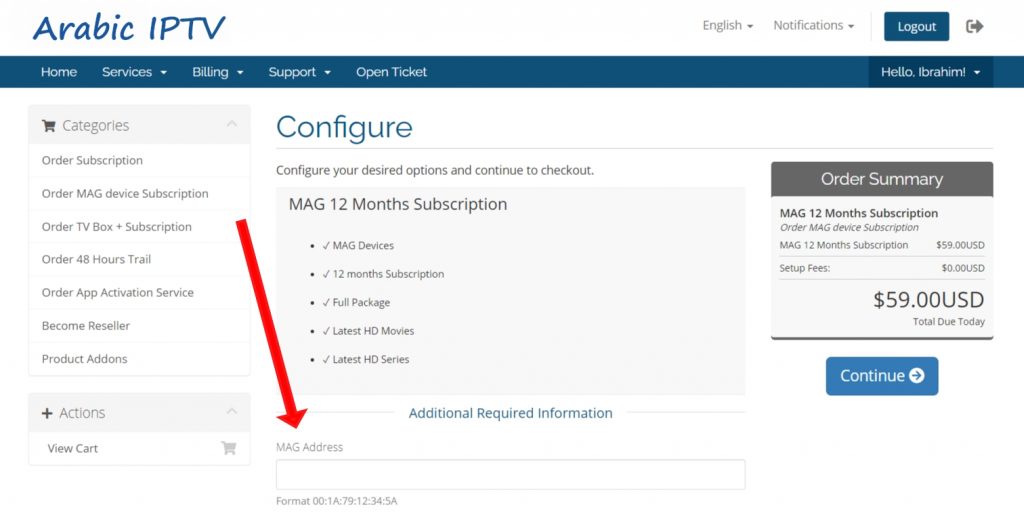
Step 2: Device Setup (MAG Setup) After completing your order and your subscription is activated, follow these simple steps on your device:
Go to Settings > System Settings > Servers > Portals.
In the Portal 1 Name field: Type any name you prefer (e.g., IPTV).
In the Portal 1 URL field: Enter the Portal link we sent you via email.
Click Save and Reboot your device.
Step 3: Start Streaming
After the device reboots, wait a few moments for the channels to load and your playlist to appear on the screen.a