Top IPTV | Frequently Asked Questions

Everything you need to easily set up the top iptv on all your smart devices, all in one place

Stream on Any Device

Android Devices

for Smart TVs, Android Boxes, and Smartphones

Mac & MacBooks

Apple MAC OS App MacBook or MacAir or any Apple laptop

iOS & Apple TV

downloading the IPTV Smarters Lite app

PC & Laptops

top IPTV players optimized forPC & Laptops

Frequently Asked Questions (FAQ) & Technical Info

Discover everything you need to know about top iptv, how it works, and why a premium IPTV subscription ensures you get the ultimate viewing experience

Answer: IPTV stands for “Internet Protocol Television.” It is a modern technology that relies on the internet to deliver television programs and video content, including both Live TV and Video on Demand (VOD) such as movies and series.

In short, it is a digital system that allows you to stream TV channels directly through your internet connection, completely replacing traditional methods like satellite dishes or cables. All you need is an internet connection anywhere, and you can start enjoying your favorite content instantly!

Answer: We offer a comprehensive package of digital entertainment services, which includes:

1. Live TV: Live channels available in multiple resolutions (4K, FHD, HD, SD) to suit all internet connection speeds.

2. Video on Demand (VOD): A massive library of the latest international movies and TV series in cinematic quality (4K, FHD, HD).

3. Time-Shift & Catch-Up TV: Missed your favorite show? Easily rewind and replay past programs and live broadcasts at your convenience.

4. Electronic Program Guide (EPG): A fully updated, built-in TV guide to check the schedule of daily programs, sports matches, and series.

5. Radio Stations: Listen to the most popular local and international radio stations in crystal-clear audio quality.

Answer:  We are committed to delivering a top iptv experience. Therefore, we guarantee your right to a refund within 7 business days from the date of purchase if you encounter any technical issue that our team is unable to resolve.

All you need to do is open a Support Ticket, and our finance team will process your refund request within just 2 business days.

Answer: It’s incredibly simple and requires no complicated installations! Just follow these three easy steps:

  • 1. Internet Requirements: The service relies entirely on the internet. It works efficiently on any Wi-Fi connection or mobile data (4G/5G) with a minimum speed of 5 Mbps.

  • 2. Install the App: Download the specific app to access our top iptv servic on your device (whether it’s a Smart TV, Android Box, Amazon Firestick, Apple TV, Roku, Smartphone, or PC).

  • 3. Activate Your Subscription: Once you order a subscription from our website, it is activated automatically and instantly. You will receive an email right away containing all your login credentials to start watching immediately.

Answer: Our basic subscription allows you to stream the service on one device (one connection) at a time.

⚠️ Important Note: You can install and log in with your subscription details on multiple devices (such as your TV and your smartphone), but you must ensure that you are only watching on one device at a time.

Want to watch on multiple devices simultaneously? If you wish to stream on several devices at the same time, you can easily add up to 3 extra devices (multiple connections) to your Top IPTV plan. This option is readily available for you to select on the Checkout page, as shown in the image below.

 Answer: Discover everything you need to know about Top IPTV, how it works, and why a premium IPTV subscription ensures you get the ultimate buffer-free 4k streaming experience.

However, you can get a full 24-hour trial subscription to thoroughly test our channel quality and streaming speed for a nominal fee of just $2.00.

[Click Here to Order Your 24-Hour Trial Now]

Note: Activation is completely instant and automated! The moment you complete your order, your login credentials will be sent directly to your email so you can start watching immediately.

Answer: You can add up to 3 extra devices (connections) to your Top IPTV subscription at any time to enjoy streaming on multiple screens simultaneously.

Why add extra connections?

  • All added devices will work seamlessly with your current login credentials (Username and Password), so there’s no need to memorize new details.

  • You will receive a massive discount of up to 50% off for every additional device you connect!

Steps to Add Extra Devices:

  1. Log In: Access your personal client area [Right Here].

  2. Services: From the top menu, select “Services”.

  3. Addons: Click on “View Available Addons”.

  4. Order: Select the number of extra connections you want, and proceed to checkout.
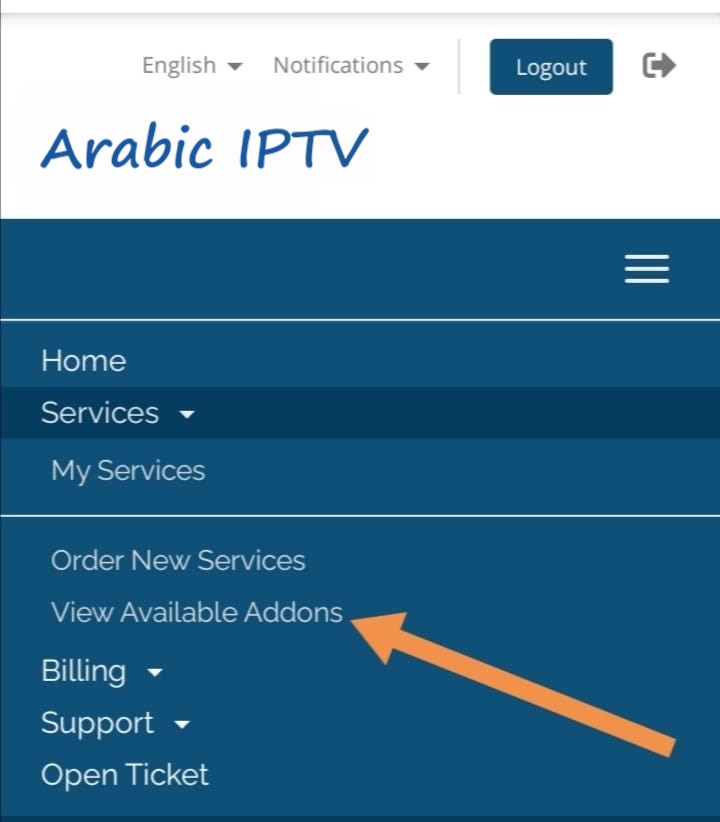
how to add up to 3 extra devices (connections) to your basic in Top IPTV subscription


Answer: Please note that most Smart TV apps are developed by third-party companies and are independent of our IPTV service. These apps typically offer a 7-day trial and then require a one-time or annual activation fee paid directly to the app developer to continue working.

Here are your options:

  • Duplex Play (The most popular): This is the preferred app for LG and Samsung Smart TVs. You can activate it yourself if you have an Android device or a Windows PC; the official activation cost is only $2.00 per year.

  • Activation Service via Us: If you prefer us to handle the process for you, we offer an activation service for a service fee of $10.00. [Click Here to Request Duplex Play Activation]

  • Other Apps: We can also assist in activating all other popular apps such as Smart IPTV, Net IPTV, Set IPTV, and more.

💡 Note: Once we receive your request, the app activation on your screen will be completed within 1 to 2 hours maximum.

Answer: This guide is for any device running on the Android system, including Android TV Boxes, Smart Android TVs, Tablets, and Smartphones.

Installation & Setup Steps:

  • 1. Access the Play Store: From your device’s home screen, head to the Google Play Store (usually found in the “Apps” section).

  • 2. Search & Download: In the search bar, type and search for one of the following apps:

    • ALL IPTV PLAYER (or)

    • IPTV Smarters Pro

  • 3. Install: Select the app and click the Install button to add it to your device.

  • 4. Activate the Service: Once the installation is complete, simply order your subscription from our website. You will instantly receive your login credentials to start watching.

Answer: No, our service is 100% family-friendly. We strictly do not provide any adult (+18) channels or pornographic content within our packages.

We are committed to providing a safe viewing environment for all family members, and we do not accept any requests to add this type of content. Our goal is to offer high-quality, secure entertainment for you and your children.

Answer: You can start enjoying your favorite channels, movies, and series in just two simple steps:

  • Step 1: Choose Your Plan. Select and order the subscription package that best suits your needs directly from our website.

  • Step 2: Install the App. Download and install our dedicated app on your preferred device (Smart TV, Android Box, Firestick, Apple TV, Roku, PC, or Smartphone).

For more details on supported devices and step-by-step installation guides, please visit our [App Download Page].

What if I don’t have a compatible device yet? No problem! You can order a high-quality TV Box directly from us. We maintain local stock in our warehouses across the USA, Canada, UK, and Australia, offering fast shipping within just 2 to 3 business days.

Answer: Don’t worry, this issue is usually caused by a temporary connection or device sync error. You can easily resolve it by following these steps:

Reboot Everything: Completely unplug the power from your device (TV, Box, or Receiver) and your Internet Router. Leave them unplugged for 5 full minutes.

Ensure Connectivity: Plug your router back in first and wait until the internet service is fully restored and stable.

Launch and Test: Turn on your device and open the app again. You should find that all channels, movies, and series are working normally.

Answer: You can easily renew your subscription at any time through your personal account by following these steps:

  1. Log In: Access your account on our website.

  2. My Services: Go to the “My Services” section in your dashboard.

  3. Instant Renewal: If your subscription has already expired, you will see a “Renew Now” button. Simply click it to complete the process.

💡 Note: If your subscription is still active and you wish to renew early to ensure zero interruption, please select “Order New Services” and choose your preferred package.
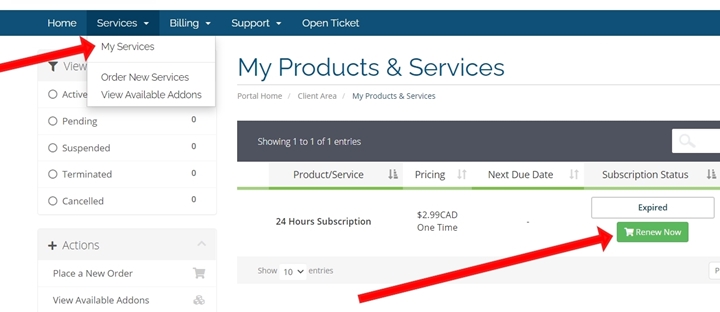
renew your subscription at any time through your personal account illustration

Answer: Yes, our service offers complete flexibility to customize your list of channels, movies, and series to match your preferences.

To do this, please follow these steps:

  1. Settings: From the app’s home screen, navigate to the “Settings” menu.

  2. Parental Control: Select the “Parental Control” option and create your unique password.

  3. Customization: Once your password is set, you will see options allowing you to hide or lock any specific category you don’t need—whether it’s TV channel groups, movies, or series. (See the illustration below for guidance).
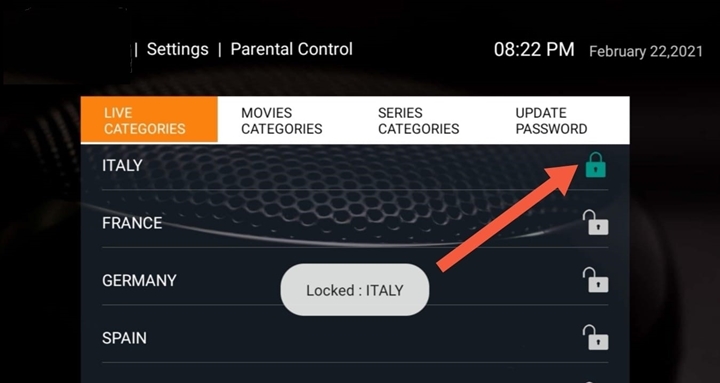
how to customize your list of channels, movies, and series to match your preferences

Answer: Recently, Roku updated the system software for several of its models. As a result of this update, “Developer Mode” has become inaccessible on some devices, causing manually installed apps to disappear.

To resolve this issue, please follow these steps:

  1. Factory Reset: Try performing a Factory Reset on your Roku device to restore its original default settings.

  2. Re-installation: After the reset is complete, attempt to re-install the app once more.

If the problem persists: Please log in to your account on our website and open a “Support Ticket.” Our technical team will assist you and provide an alternative solution to ensure your service continues without interruption.

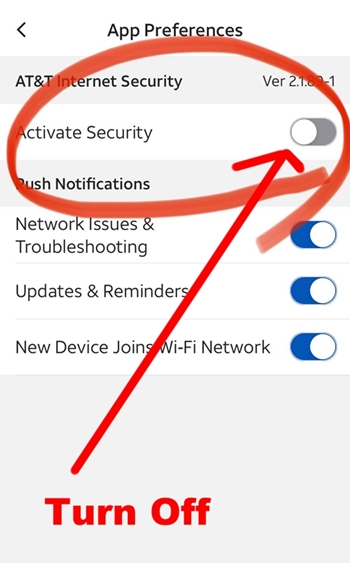
Answer: If you are using AT&T Internet, the issue is likely related to their automatic security settings that block certain streaming connections. You can easily resolve this by following these steps to ensure your service works flawlessly:

  1. Download the App: Download the AT&T Smart Home Manager app from the App Store or Google Play on your smartphone.

  2. Log In: Sign in to the app using your AT&T account credentials.

  3. Security Settings: Navigate to the “Security” tab or the “App & Home Manager” section.

  4. Disable Protection: Look for an option called “Internet Security” or “ActiveArmor” and disable it temporarily. This feature is typically responsible for blocking IPTV server connections.

Once completed, restart your IPTV app, and you will find that the service is working perfectly.
 samrt home manger app

solve problems of samrt home manger app

? Still having trouble setting it up

Our top IPTV technical support team is available to guide you step-by-step via WhatsApp